VideoBro / How it works
Start a tape. Pass it around. Hit Develop.
Everyone films into one tape from their own iPhone, and Develop turns it into one film.
Six words you'll see a lot
A tape works like a shared album: everyone adds from their own iPhone, and it comes back out as one film.
- Tape
- The shared container: one trip, one season, one party. Everyone you invite films into it.
- Active Tape
- A tape still being filmed. You can have several going at once.
- Develop
- The button that turns an Active Tape into one film. It runs in the cloud, so you can close the app.
- Film
- What Develop makes: everyone's clips, in order, as one video.
- Tape Cabinet
- Where finished films live, on your phone and on the web.
- Shelf
- A group of films in the Cabinet. Hide one behind Face ID, or share it by link.
Start to finish, in ten steps
-
Start a tape
Tap New Tape and name it: the weekend, the season, the party. One tape per thing.
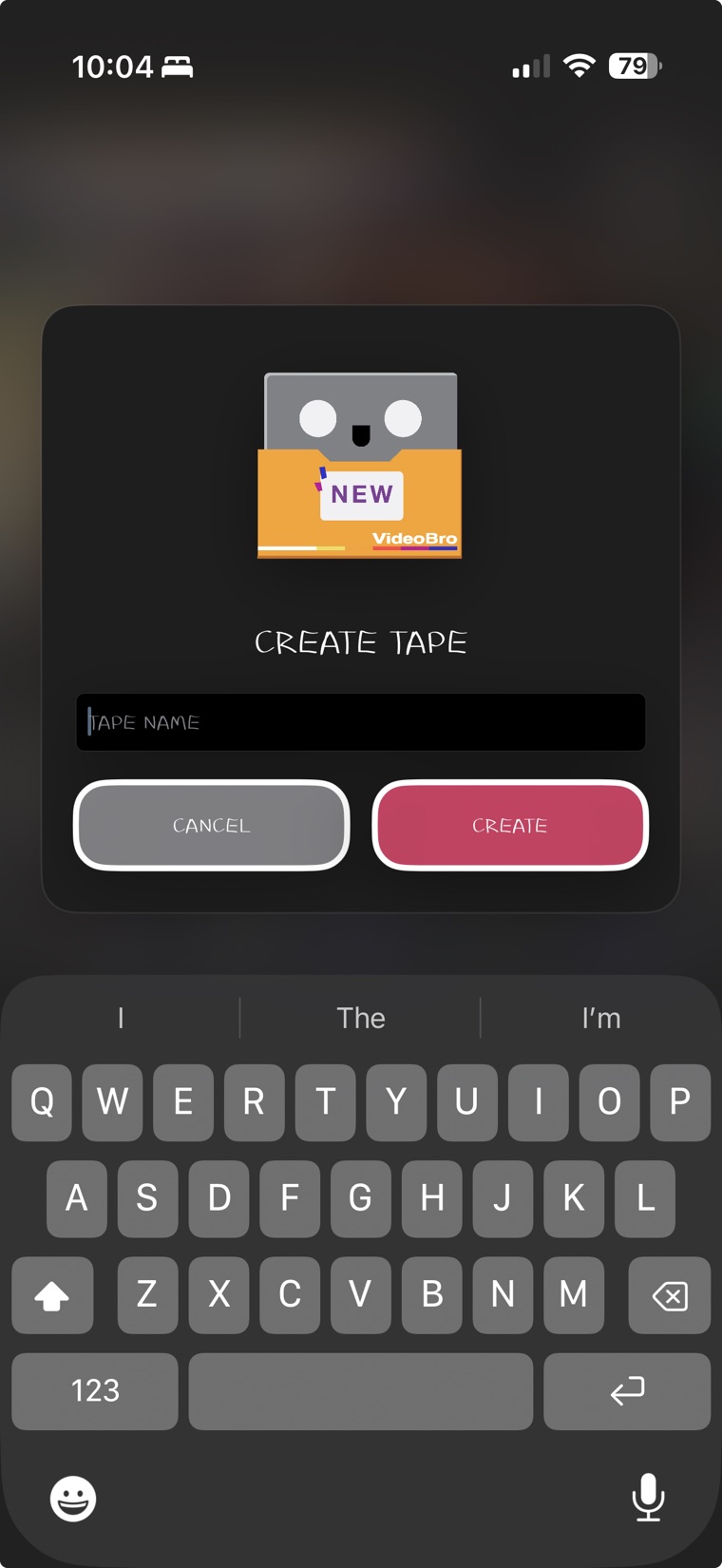
Name it like a label. That's the only decision. -
Press REC, then film sideways like you always do
Tap REC at the top of the screen, then film with the iPhone Camera app, holding the phone sideways. There's no camera inside VideoBro: when you come back, the clips you shot are on the tape.
Only horizontal video goes on a tape. REC only collects what you film while it's on, and nothing already on your phone is added unless you choose it.
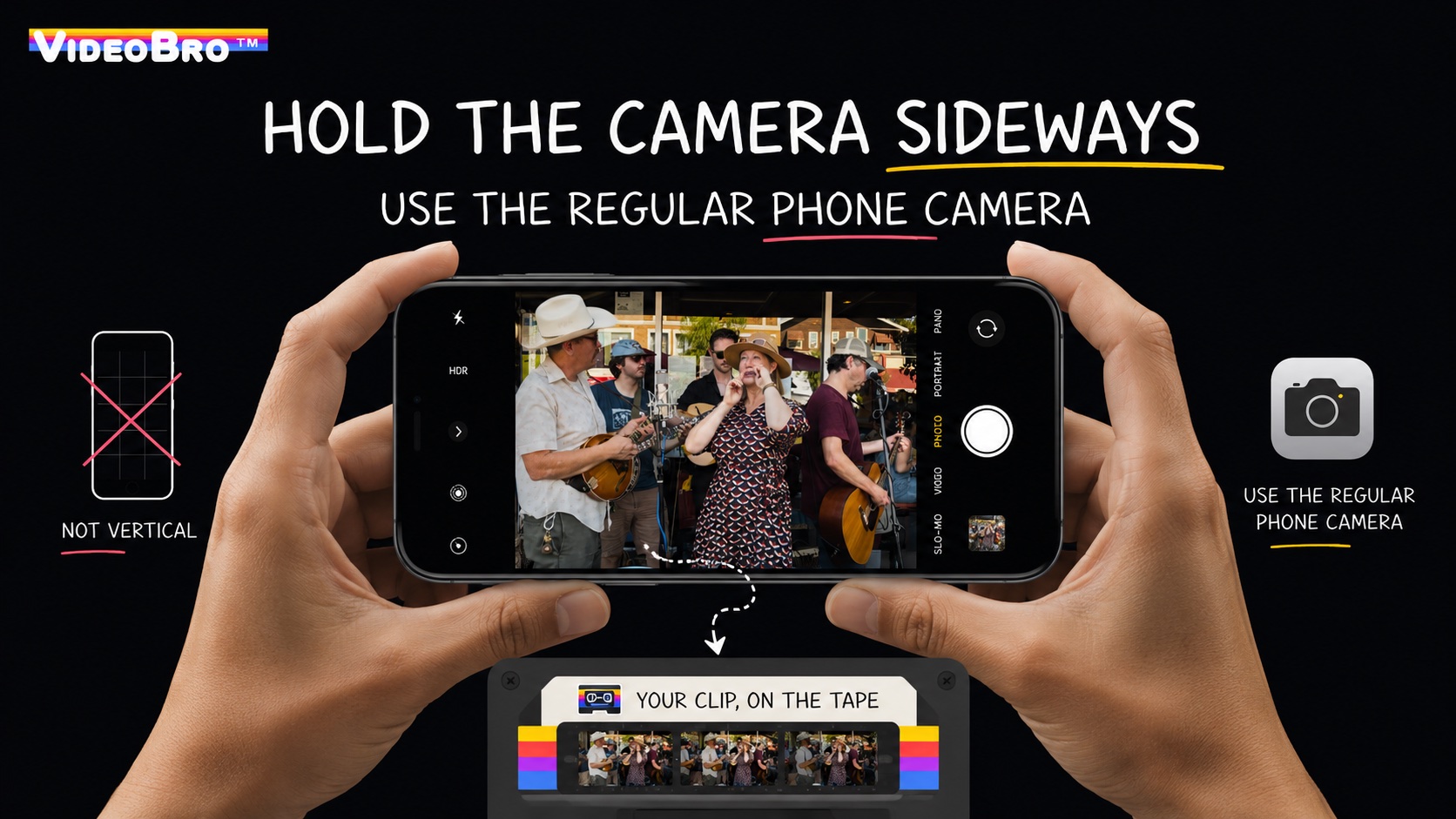
Sideways, in the Camera app you already have. The clip lands on the tape. -
Add the clips you already have
Tap + in the corner of the clip list to open Add Clips, then pick videos already on your phone. Vertical ones are marked and can't be added. Each clip drops in at the moment it was recorded, so old and new footage line up as one timeline.
Add Clips can also open an iCloud Shared Album you're in; those videos are placed by the date saved with each one.
Anything already on your phone can go on the tape. -
Invite your crew
Tap Collab, then Invite, and send the link. Whoever opens it films into the same tape from their own phone.
A tape holds up to 8 people, including you, on every plan. Anyone on the tape with an account can invite more; friends without an account can still join, film and watch. Invite links work for 7 days.
Everything about shared tapes
Send the link however you like, or let someone scan the code. -
Clips play in the order they were shot
Clips are ordered by when they were recorded, not when they finished uploading. Three phones filming the same evening make one timeline, in the order it happened.
A phone that was offline until morning still slots its clips into the right moments. There's no drag-to-reorder.
One evening, three phonesrecorded time →7:407:417:427:437:447:45Phone A7:42Phone B7:44Phone C7:43on the tape7:42 A7:43 C7:44 BDashed = uploaded last, from a phone that was offlineIt still lands between 7:42 and 7:44 -
Watch it take shape
Tap a clip and it plays straight into the next, in order. Turn the phone sideways for full screen, swipe to jump between clips, and hold the left or right side of the picture to rewind or fast-forward.
Holding one side runs the tape on, static and all. -
Make simple edits
Swipe a clip to delete it. Press and hold a clip to trim its start and end. That's the whole editor.
Trims never touch the original video and are applied when the tape is developed, so you can change your mind. Anyone on the tape can trim or remove any clip.
Editing and playback, in detail
Pull the handles in. Nothing is cut until the tape is developed. -
Develop it
Anyone on the tape with an account taps Develop. VideoBro puts everyone's clips together in the cloud, in order, with your trims, as one widescreen film.
Once your clips have uploaded you can close the app. It takes a few minutes, longer for a big tape, and everyone on the tape gets a Tape Developed! notification.
What Develop does, exactlyDeveloping, then the finished film in the Cabinet. -
Keep it in the Tape Cabinet
The film lands in your Tape Cabinet and in the Cabinet of everyone on the tape. Sort films onto shelves, hide a shelf behind Face ID, pick a cover, or save a film to your Camera Roll.
Share a film with one unlisted link: anyone with it can watch in a browser, no app or account needed. Stop sharing and the link dies. You can also open your Cabinet on any computer at watchvideobro.com.
The Tape Cabinet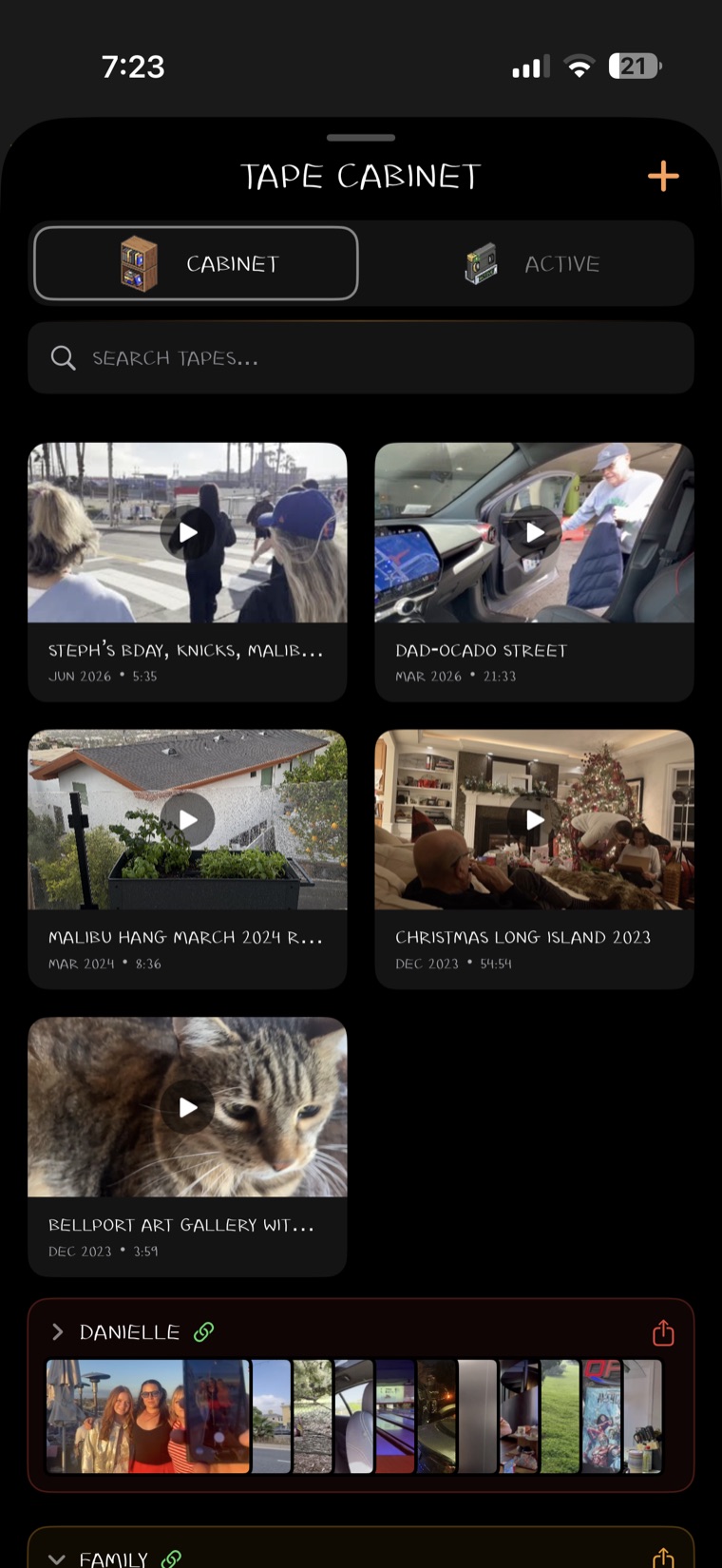
The Tape Cabinet, with shelves. -
Reopen it if you need to
Forgot a clip? For 30 days after developing, anyone on the tape with an account can tap Continue Editing on the film. The tape goes back to Active; add or trim, then tap Develop Changes.
The old film leaves the Cabinet for everyone still on the tape, with no undo. After 30 quiet days, VideoBro clears the raw clips behind a film to save space. The finished film stays.
What stays, what gets cleaned upActiveActive TapeFilming, adding, trimming.
DevelopCloudDevelopingA few minutes. Close the app.
ReadyCabinetFinished FilmWatch, shelve, share.
Continue Editing (within 30 days) puts the tape back on Active. Develop Changes makes the new film.


What it doesn't do, on purpose.
These are the same on every plan, and none of them is a limit you can pay to lift.
- No reordering. Clips play in the order they were shot.
- No filters, titles or music. Trim and delete are the whole edit. VHS mode only changes how a film plays, never the file.
- No vertical video. Hold the phone sideways.
- Two hours and eight people per tape. Need more? Start another tape.
- Filming needs an iPhone. Watching a finished film needs only a browser.
Questions people ask first
Do my friends need the app?
To film into a tape, yes: that takes the iPhone app, and invited friends don't need an account to film. To watch a finished film, no: anyone with the link can watch it in a browser, with no app and no account.
Do I need an account?
To start your own tape, yes, a free one. To join someone else's tape from their invite, film into it and watch its film, no.
What if I have no signal?
Keep filming. Clips are saved on your phone and upload on their own when a connection comes back, even if the app isn't open.
Do I have to film in a particular order?
No. Clips land in the order they were recorded, not the order they uploaded. Join late or add older clips and it still lines up into one timeline.
What if someone films vertically?
It won't be added. REC only picks up horizontal video, and Add Clips won't add vertical video either. Turn the phone sideways before you shoot.
Can I keep more than one tape going?
Yes. An Active Tape has no deadline, so a season can run from the first game to the last alongside a trip on its own tape. Each keeps its own crew and clips until you Develop it.
More on developing: Develop, in full